

Set up the agent
The agent is a chat assistant that lives in the Salesforce utility bar. The starter agent is called Lumen. Users ask it questions in plain language, and it uses the same tools to look things up and make changes in the org.
Here the AI model is called from Apex, so you need an API key from a model provider. These steps use OpenRouter, which comes preconfigured. To use OpenAI, Azure OpenAI or your company’s AI gateway instead, see Use a different provider.
Install ApexAgent before you start.
1. Add your key
Section titled “1. Add your key”Create a key on OpenRouter’s API keys page and copy it.
In Setup, go to Named Credentials, open the External Credentials tab, and open OpenRouter Credential. Under Principals, open the Actions menu at the end of the Authorization row and choose Edit. Add an authentication parameter:
- Name:
Authorization - Value: your OpenRouter API key, just the key. Do not put
Bearerin front of it; ApexAgent adds that.

2. Open the agent
Section titled “2. Open the agent”From the App Launcher, open the ApexAgent Setup Portal app. Lumen is in the utility bar at the bottom of the screen, and also has a full-page Lumen Agent tab.
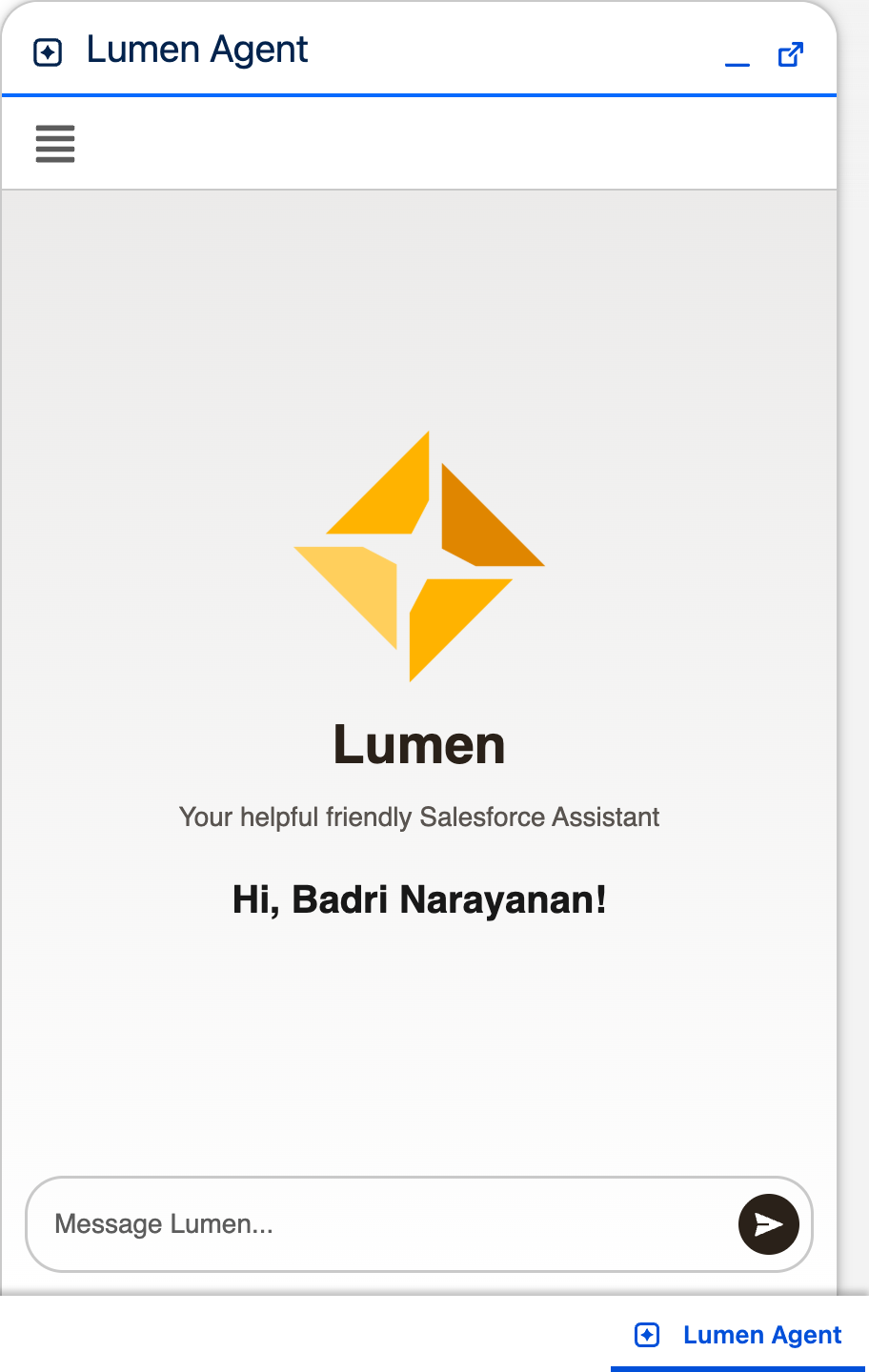
To put it in another Lightning app, edit that app in App Manager and add the lumenAgent component to its utility bar. For an agent of your own, see Customise an agent.
3. Pick a model
Section titled “3. Pick a model”Setup creates two LLM records that both use your OpenRouter key:
| LLM | Model |
|---|---|
| Gemini 3.7 Flash | google/gemini-3.7-flash |
| Free Model Router | openrouter/free, which routes to models OpenRouter offers at no cost |
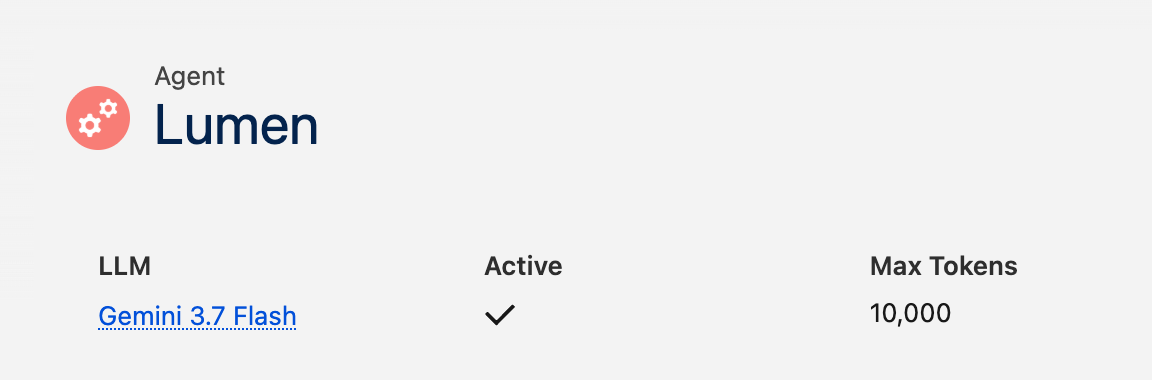
Lumen starts on Gemini 3.7 Flash. To change it, open the Agents tab in the Setup Portal, open Lumen and set its LLM field. Both options need your OpenRouter key, including the free one.
To use a model or provider that isn’t listed, see Use a different model.
See it work
Section titled “See it work”Once the key is in place, ask Lumen something about your data.
