

Set up the MCP server
MCP (Model Context Protocol) is an open standard that lets an AI client call tools hosted somewhere else. ApexAgent turns your org into an MCP server. Once a client is connected, the person using it can ask things like “what fields are on Opportunity?” or “show me my open cases”, and the client calls the tools in your org to answer.
The AI model belongs to the client. ApexAgent only serves the tools, so no model provider key is needed.
Install ApexAgent before you start.
1. Find your server URL
Section titled “1. Find your server URL”From the App Launcher, open the ApexAgent Setup Portal app, go to the MCP Servers tab and open Default MCP Server. Copy its Endpoint URL. It looks like:
https://<your-domain>.my.salesforce-sites.com/services/apexrest/ApexAgent/mcp/default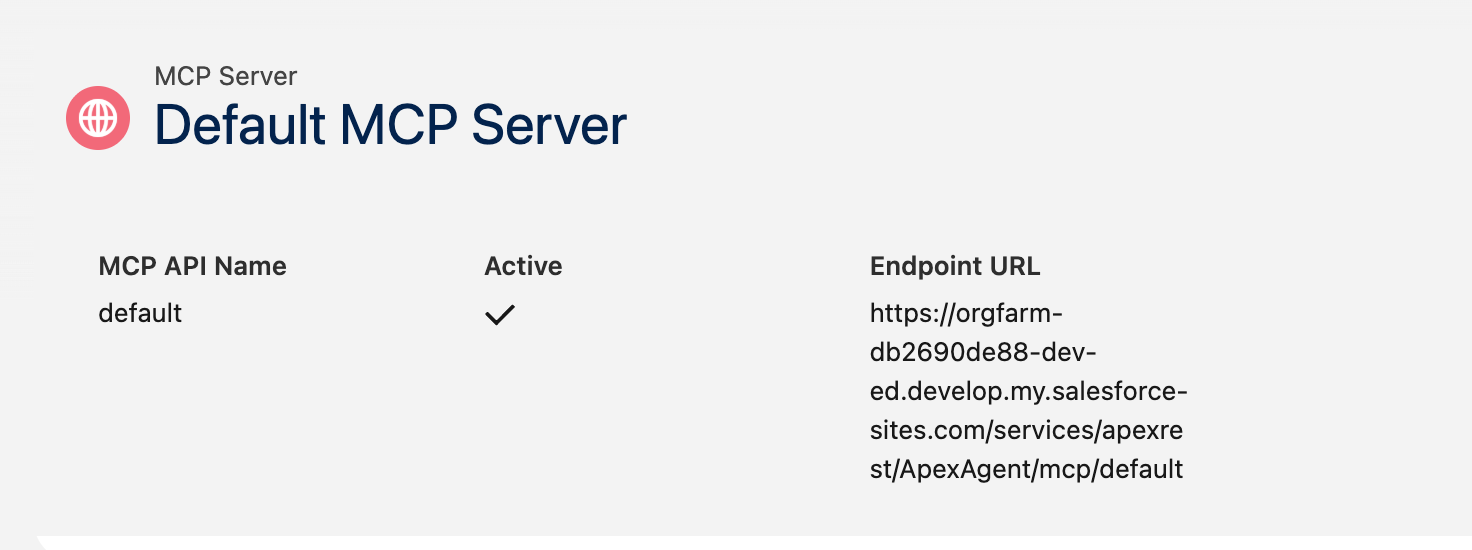
2. Get the OAuth client ID
Section titled “2. Get the OAuth client ID”An External Client App is Salesforce’s newer form of a Connected App: it is what lets an outside app sign users in. The deploy created one for you, called ApexAgent MCP.
In Setup, open External Client App Manager and open ApexAgent MCP. On its Settings tab, expand OAuth Settings and select Consumer Key and Secret. Salesforce may first ask you to verify your identity with a code it emails you. It then opens a page showing the Consumer Key and the Consumer Secret; copy the Consumer Key.
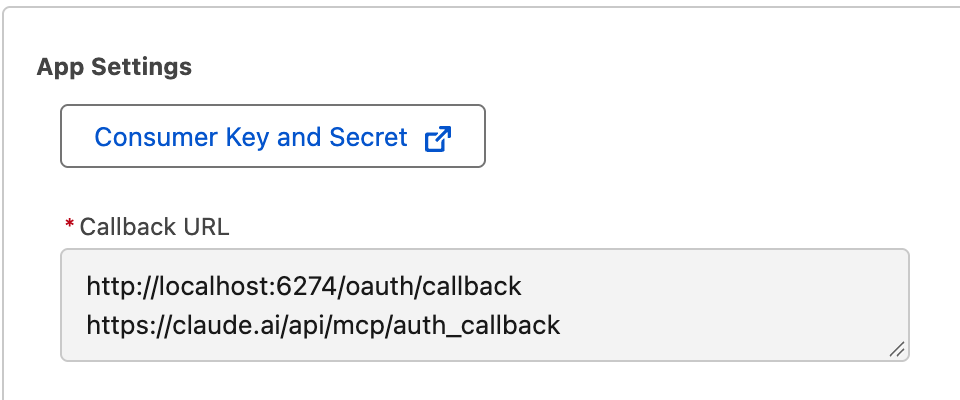
The Consumer Key is the client ID your MCP client asks for. No client secret is needed, so there is nothing secret to copy or to leak. The app uses PKCE instead, a standard way for a client to prove itself during sign-in without a stored secret.
While you are there, edit the app and change its Contact Email from the placeholder admin@example.com to your own. It is only the contact shown for the app; sign-in works either way.
3. Connect your client
Section titled “3. Connect your client”Add a remote MCP server in your client, with the server URL from step 1 and the client ID from step 2. When prompted, sign in with your Salesforce login.
Step-by-step settings for each client:
Who can connect
Section titled “Who can connect”Only users with the ApexAgent User permission set. Anyone else who tries to sign in from a client is refused, and nobody has to approve the app for themselves.
More than one server
Section titled “More than one server”Create more MCP Server records, each with its own API name and its own set of tools. Each gets its own URL, so you can give different clients different tools. See Configure MCP servers.