

Connect Claude
You need two values from Set up the MCP server: the Endpoint URL and the client ID (the External Client App’s Consumer Key).
-
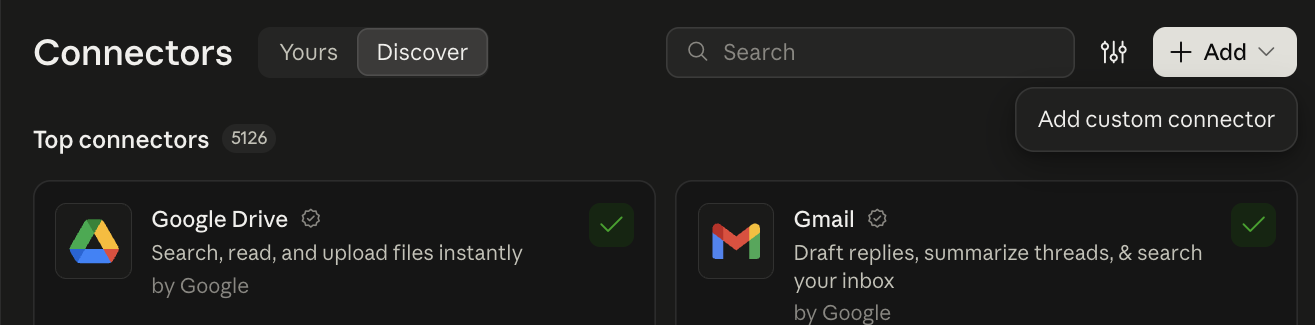
In Claude, open Customize, then Connectors. Select Add, then Add custom connector.
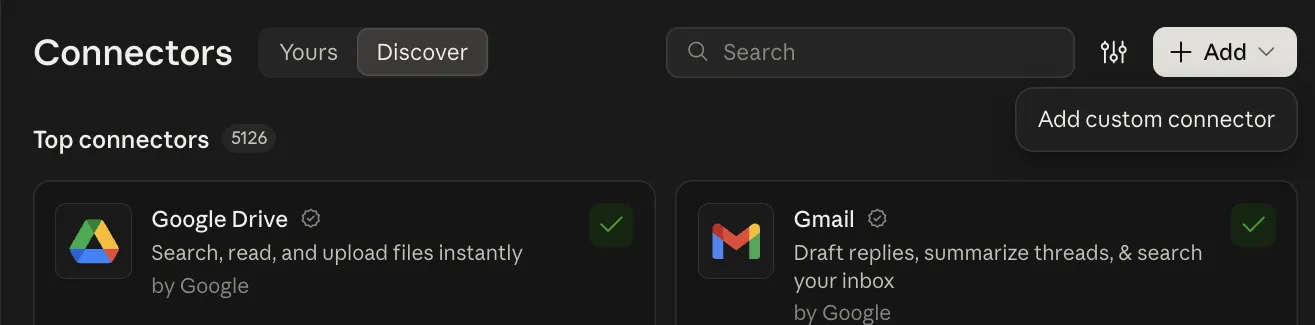
Add custom connector is the only item in the Add menu. -
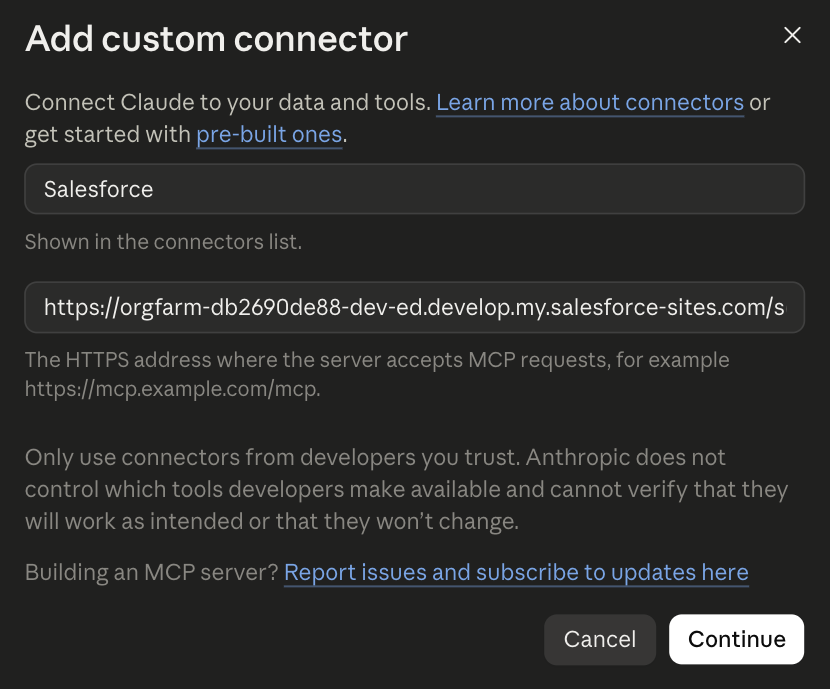
Enter a name in the first field, such as
Salesforce, and paste the Endpoint URL into the second field, MCP server URL. Select Continue.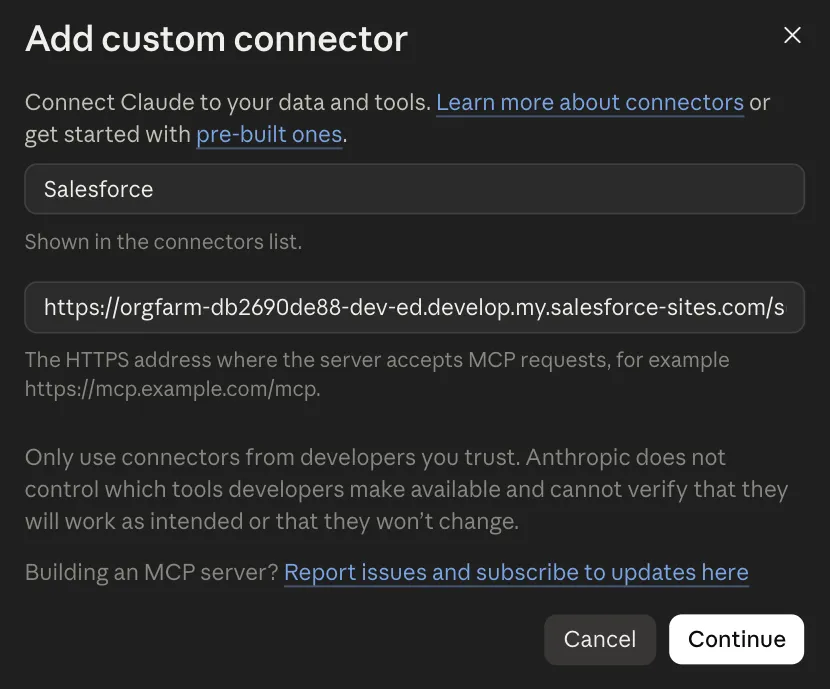
The name is only a label in Claude. The MCP server URL is your Endpoint URL. -
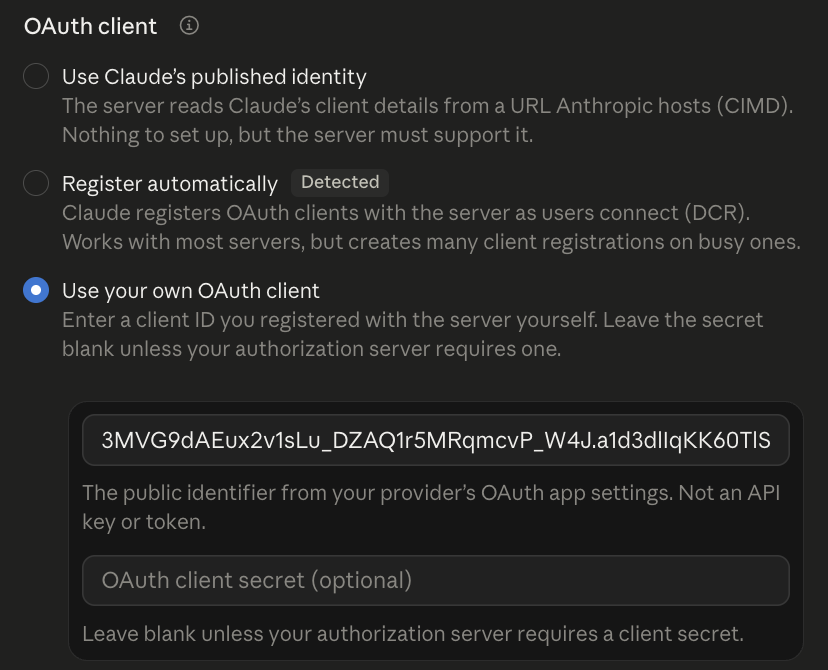
Under OAuth client, choose Use your own OAuth client. A field labelled OAuth client ID appears under it; paste the Consumer Key there and leave the client secret empty. Claude preselects Register automatically, which Salesforce does not support, so change it.
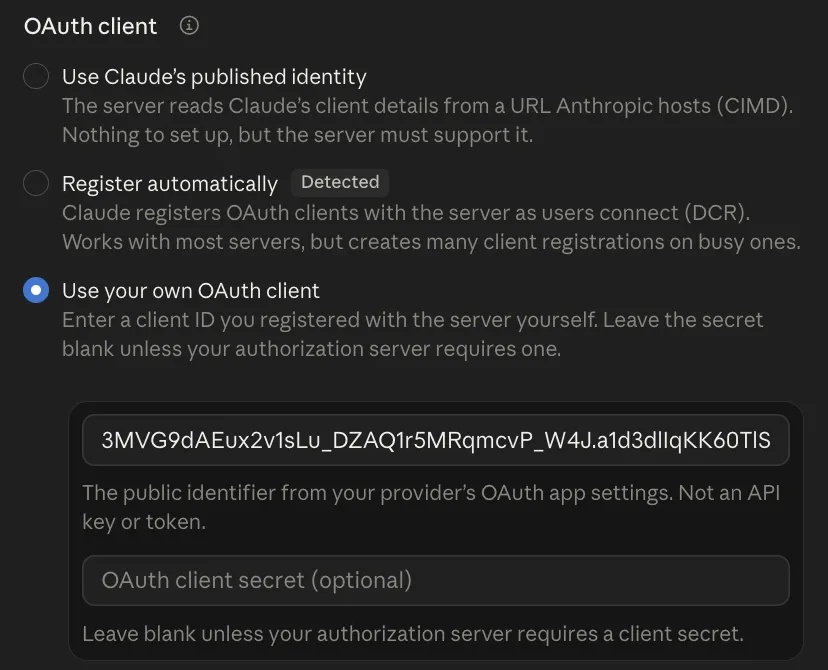
Choose Use your own OAuth client, then paste the Consumer Key as the OAuth client ID. -
Scroll to the bottom of the dialog and select Add. Sign in with your Salesforce login if Claude asks. If you are already signed in to Salesforce in that browser, it connects straight away. Claude then lists the tools it found.
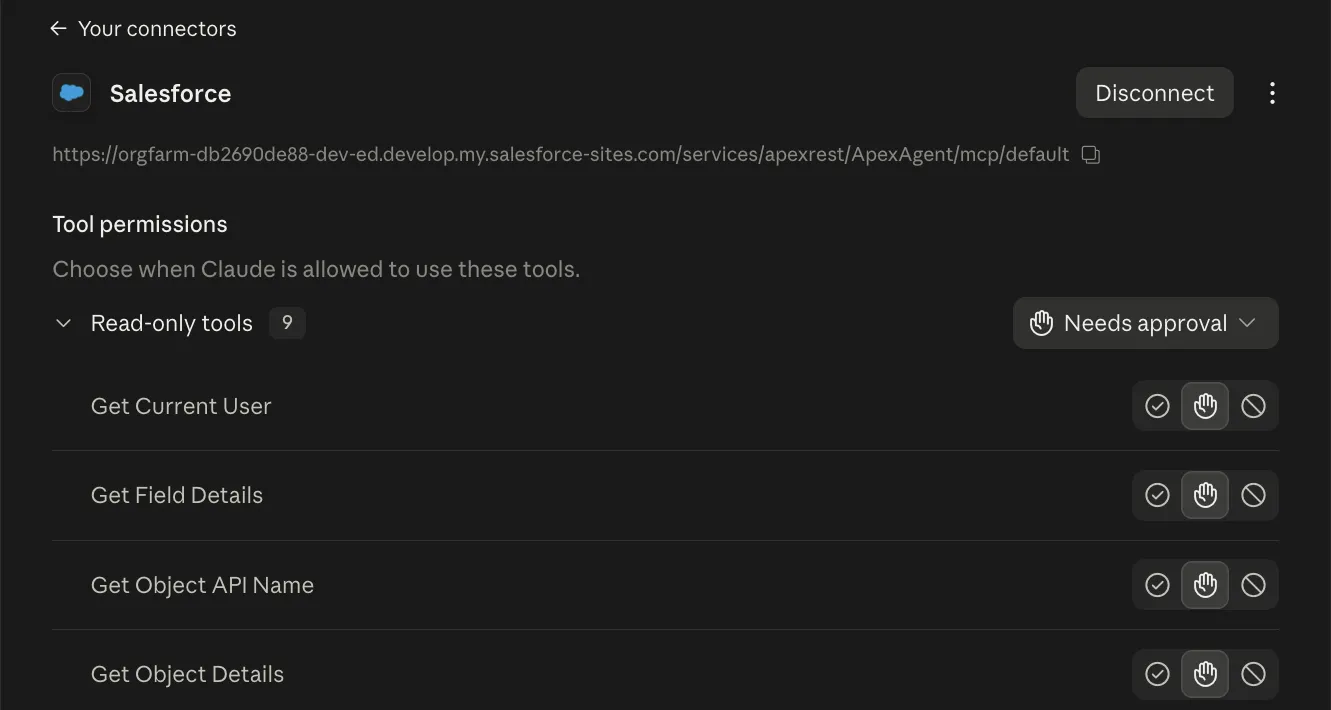
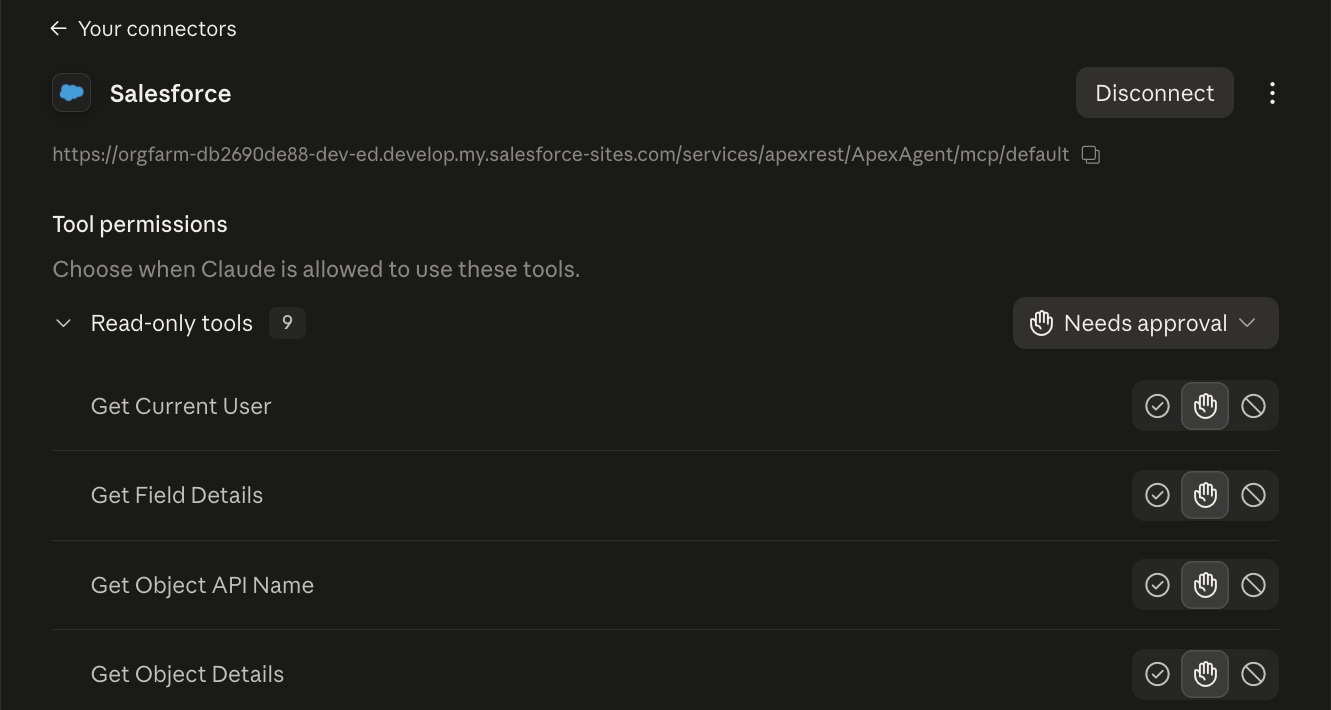
Once connected, Claude lists the ApexAgent tools. Nine are read-only; the tenth, Upsert Records, is listed below them because it can change data. -
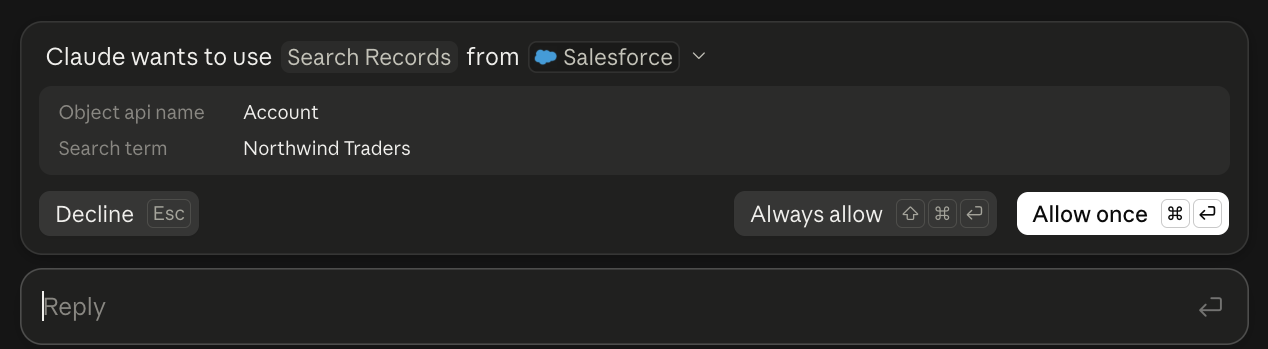
Ask Claude something about your org. The first time it wants to use a tool, it asks for permission. Choose Allow once, or Always allow to stop being asked for that tool.
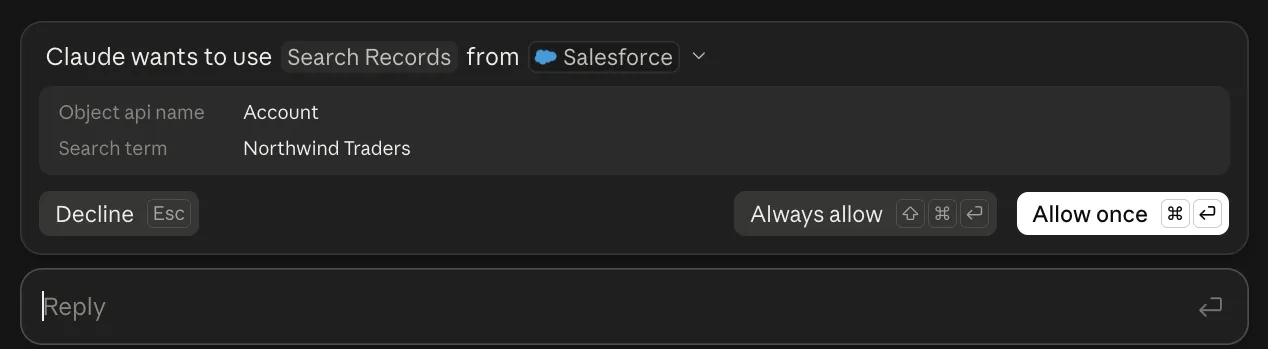
Claude shows which tool it wants to run, and with what input, before it runs it.
Claude’s callback URL, https://claude.ai/api/mcp/auth_callback, is already allowed in the External Client App.