

Install
These steps are the same whichever part you want. Check the prerequisites first.
Allow about 15 minutes. You can run the commands in a terminal, or do the same thing from VS Code with the Salesforce Extension Pack; each step below says how.
1. Get the code and sign in to your org
Section titled “1. Get the code and sign in to your org”git clone https://github.com/badrisnarayanan/ApexAgent.gitcd ApexAgentsf org login web --alias my-org --set-defaultThe last command opens a browser for you to log in. To sign in to a sandbox, add --instance-url https://test.salesforce.com to it.
In VS Code: clone the repository, open the folder, and run SFDX: Authorize an Org from the Command Palette.
2. Deploy
Section titled “2. Deploy”sf project deploy start --source-dir force-appIn VS Code: right-click the force-app folder and choose SFDX: Deploy This Source to Org.
The deploy creates everything ApexAgent needs, including the Site and the External Client App for the MCP server. Both are ready to use; there is nothing to activate.
3. Run setup
Section titled “3. Run setup”sf apex run --file seed/setup.apexIn VS Code: open seed/setup.apex, right-click in the editor and choose SFDX: Execute Anonymous Apex with Editor Contents.
Setup prints one line beginning ApexAgent setup: that says what it did. On a first run it:
- creates the starter configuration: 2 LLMs (the AI models the agent can use), 10 tools, 1 topic with 3 instructions (the guidance the agent follows, grouped by area of work), 1 agent (Lumen) and 1 MCP server. How it’s organised shows how these fit together
- assigns the ApexAgent Admin permission set to you
- assigns the ApexAgent MCP Guest permission set to the MCP Site’s guest user
It is safe to run again. It never duplicates or overwrites records; a later run only finishes anything an earlier one could not.
4. Give your users access
Section titled “4. Give your users access”ApexAgent has three permission sets:
| Permission set | Who gets it | What it allows |
|---|---|---|
| ApexAgent User | Everyone who chats with an agent or connects an MCP client | Using agents and MCP servers. They can see the configuration but not change it, and they see only their own conversations and logs |
| ApexAgent Admin | People who configure ApexAgent | Everything in the Setup Portal: creating and changing agents, topics, instructions, tools, models and MCP servers, and reading everyone’s conversations and logs |
| ApexAgent MCP Guest | Only the MCP Site’s guest user. Setup assigns it; never give it to a person | Answering the sign-in handshake from an MCP client. It gives no access to any object, field or record |
Setup gave ApexAgent Admin to you. That is enough to configure everything and to chat with the agent. To connect an MCP client yourself, give yourself ApexAgent User as well; signing in from a client always needs it.
Assign ApexAgent Admin to anyone else who will configure ApexAgent. Be deliberate about it, because it lets them read every user’s conversations.
Assign the ApexAgent User permission set to everyone who will chat with the agent or connect an MCP client. In Setup, open Permission Sets, open ApexAgent User and use Manage Assignments. Or from the command line:
sf org assign permset --name ApexAgent_User --on-behalf-of someone@example.com5. Check it worked
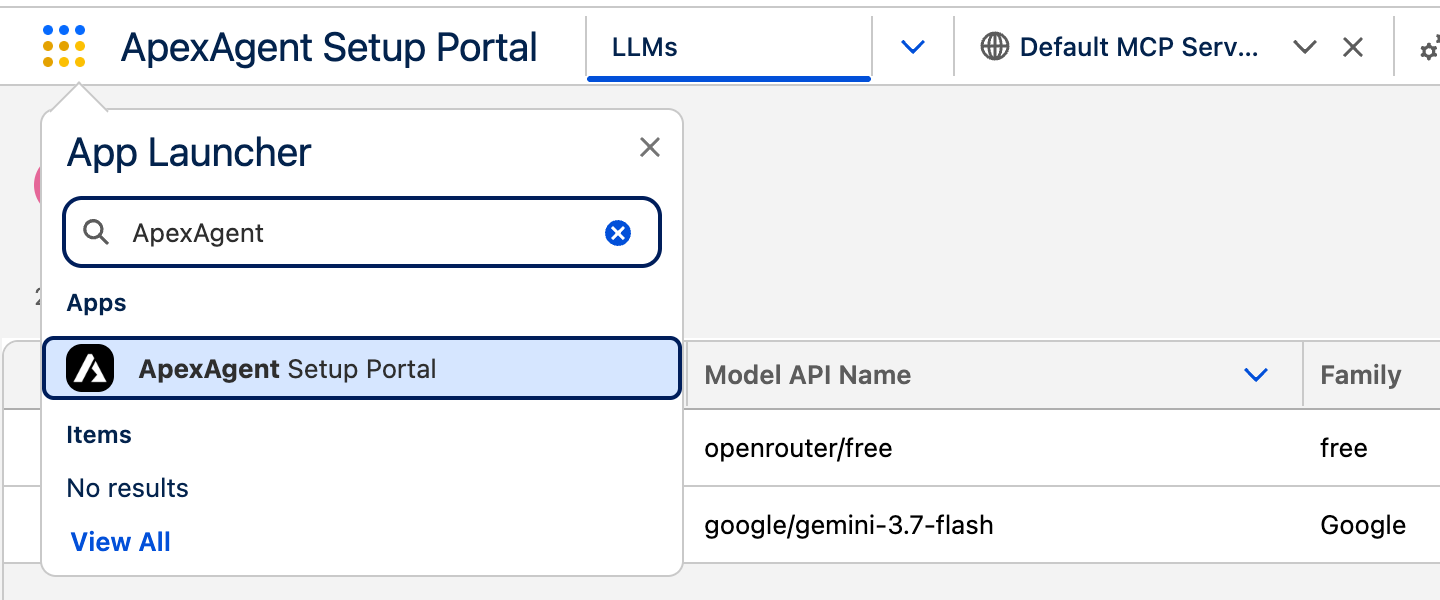
Section titled “5. Check it worked”Open the App Launcher in Salesforce and search for ApexAgent. The ApexAgent Setup Portal app should be listed.
Nothing is usable yet: each part needs a few more clicks in Salesforce Setup. Continue with the part you want: