

Add your own tool
A tool is an Apex class with one @InvocableMethod. ApexAgent reads the method’s labels and descriptions and builds the tool definition from them, so the descriptions are what the AI model reads to decide when and how to call your tool.
1. Write the class
Section titled “1. Write the class”public with sharing class ApexAgentGetAccountHealth {
public class Input { @InvocableVariable(required=true label='Account Id' description='Id of the account to score.') public String accountId; }
public class Output { @InvocableVariable(label='Health' description='One of: Good, At Risk, Critical.') public String health; }
@InvocableMethod(label='Get Account Health' description='Returns a health rating for an account. Use when the user asks how an account is doing.') public static List<Output> run(List<Input> inputs) { try { List<Output> results = new List<Output>(); for (Input input : inputs) { String accountId = ApexAgentToolInput.requireNotBlank(input.accountId, 'accountId'); Output result = new Output(); result.health = 'Good'; // your logic here results.add(result); } return results; } catch (Exception e) { ApexAgentToolErrorContext.record(e); throw e; } }}Conventions the built-in tools follow, and yours should too:
- Prefix the class name with
ApexAgent(or your own prefix). The class name is also the tool name the model sees. - Throw clear errors for bad input. The model reads the message and corrects itself.
ApexAgentToolInputhas helpers for this. - Wrap the method body in try/catch and call
ApexAgentToolErrorContext.record(e), so the real stack trace reaches the logs. - Refer to other tools by class name in descriptions, not by label.
2. Register it
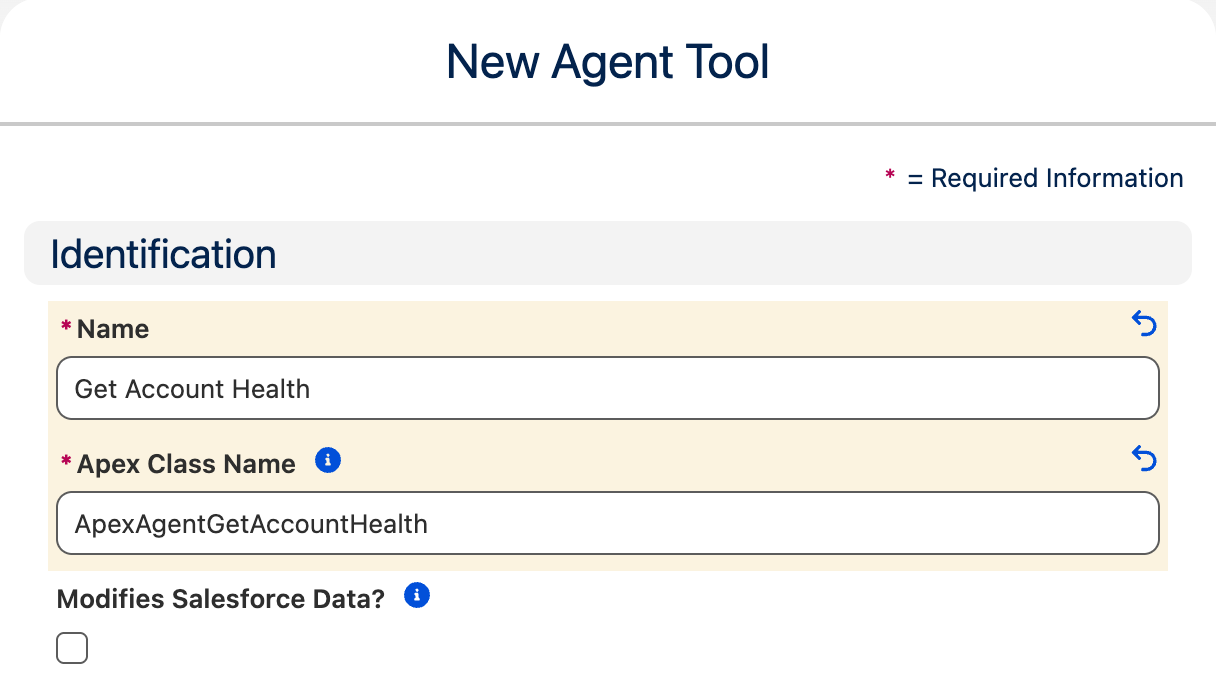
Section titled “2. Register it”In the Setup Portal, open the Agent Tools tab and select New. Give the tool a Name, set Apex Class Name to your class name, and tick Modifies Salesforce Data? if it creates, updates or deletes records. Leave the schema fields empty and select Save.
The tool’s schema is generated a few seconds after you save. If you change the class later, use Regenerate Schema on the tool record.

3. Make it available
Section titled “3. Make it available”A new tool does nothing until it is given to a topic, an MCP server, or both.
- To give it to an agent: open the tool record’s Related tab and select New in Topics Using This Tool.
- To give it to MCP clients: open the MCP Server record, go to its Related tab and select New in Tools.